 Omnikit
1. Install Omnikit
- Install Omnikit from the Shopify App Store and approve its access.
- Omnikit opens on Home, where each feature shows whether it's on and how it's doing.
- Your first 6 days include every feature with no limits, so try them all before you pick a plan.
2. Wholesale pricing
Give customers tagged wholesale 20% off, or everyone 5% off from 5 units. Prices apply in the cart and at checkout.
- Open Wholesale pricing and click Add rule.
- Pick the customers: one or more customer tags, or everyone.
- Pick the products: all products, collections or specific products.
- Set the price: a percent off, an amount off or a fixed price each, and add volume tiers if you like (for example 12+ units 15% off). Tiers count each product across its variants.
- Save. Omnikit creates one automatic discount that gives each cart line the best rule for that shopper.
- Click Add block to product page so shoppers see their price and your tiers, and Turn on for product cards to show it in collections and search too.
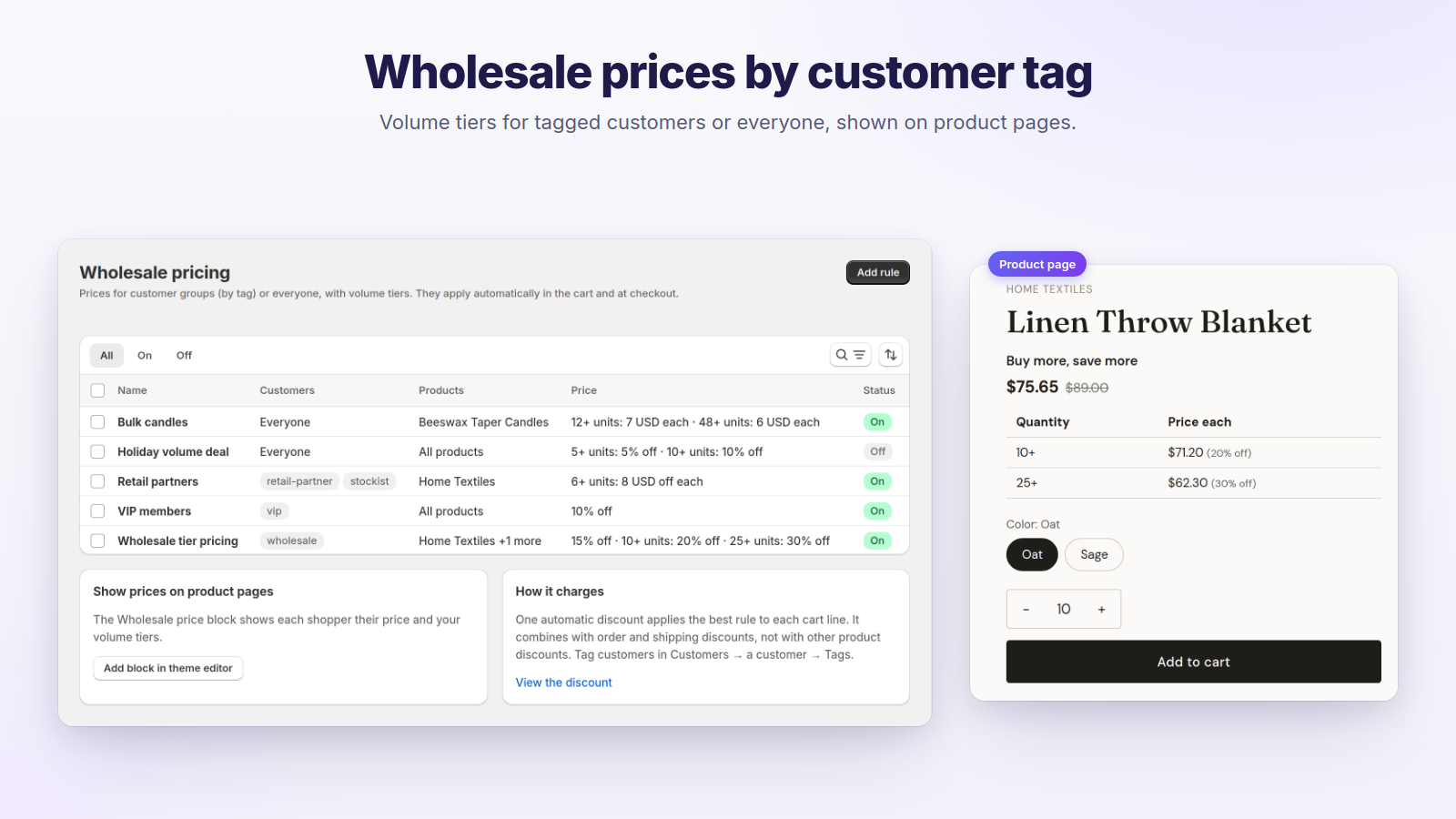
Tag a customer in Shopify under Customers → a customer → Tags. Each shopper sees only their own prices; everyone else sees your regular prices. Wholesale prices combine with order and shipping discounts, not with other product discounts.
3. Wholesale registration
A trade sign-up form on your store. Approve an applicant and they get your wholesale tag, an approval email and their wholesale prices. Comes with the Scale plan.
- Open Wholesale registration and click Use wholesale template, or add your own fields: name, email, phone, company, text, number, dropdowns and checkboxes.
- Set the customer tag approved applicants get. Use the tag your Wholesale pricing rules price.
- Write the approval email: subject, heading, message, button and your logo.
- Add the Wholesale registration block in the theme editor, on any page or the product page.
- Applications show up in Omnikit. Approve one and the customer gets your tag (Omnikit creates the customer if they're new) and the email.
4. Order limits
A minimum order of $200, at most 2 of a limited drop, or wholesale customers buying in packs of 6.
- Open Order limits and click Add rule.
- Pick the customers: customer tags, or everyone.
- Limit the whole order (its value or number of items) or each product it covers: a minimum, a maximum and a pack size.
- Add a message if you want your own wording, then save. Omnikit creates the checkout rule for you.
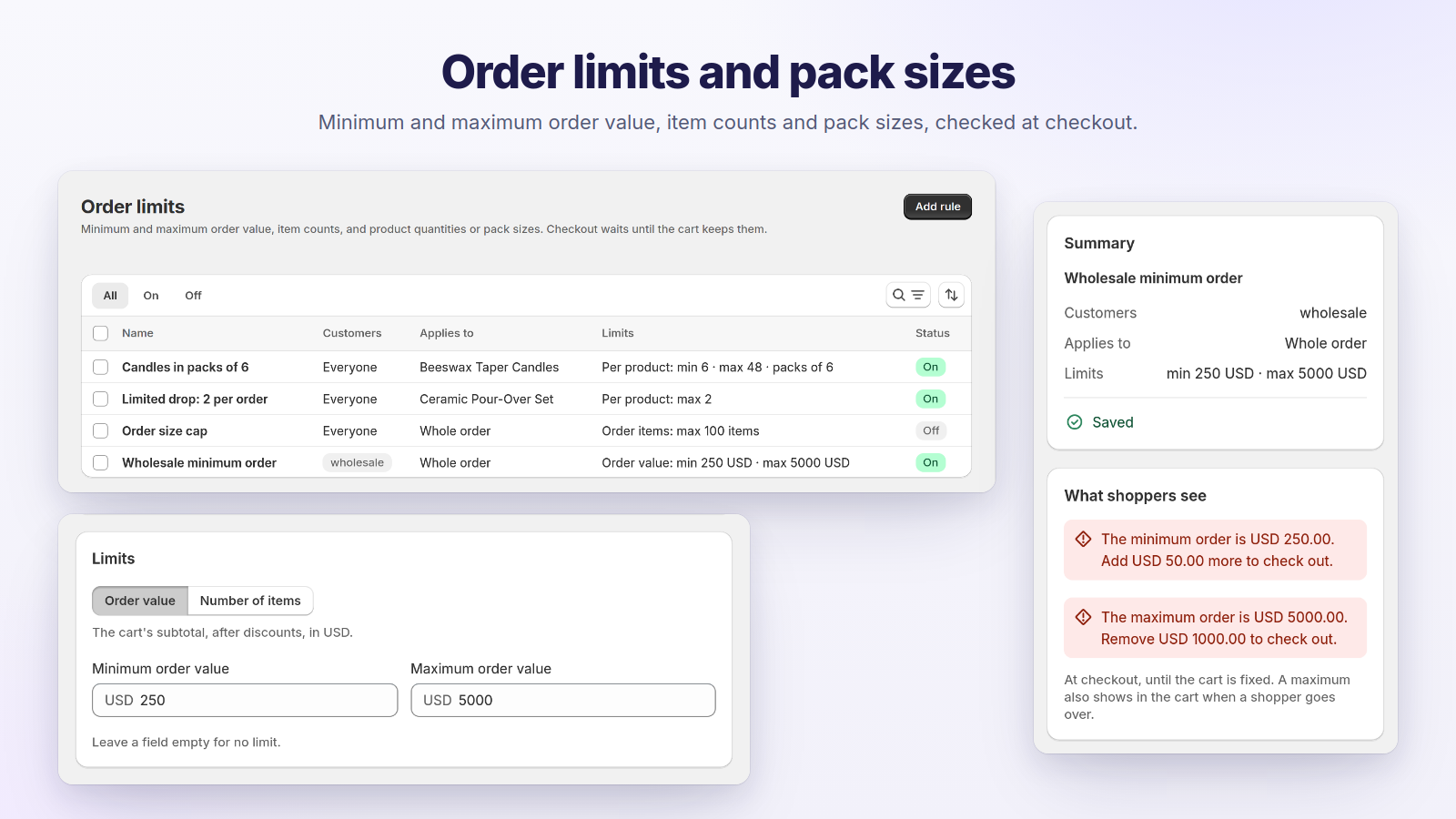
Minimums and pack sizes are checked at checkout, so shoppers can still add their first item. Maximums are checked in the cart too.
5. Shipping protection
An optional fee shoppers add for cover against loss, theft or damage in transit. You keep the fee and handle claims.
- Open Shipping protection, turn on Offer shipping protection and set the fee. On Scale it can be a percent of the cart, with a minimum and a maximum.
- Save. Omnikit creates a hidden “Shipping protection” product whose variants are the price steps.
- In the theme editor, turn on the Shipping protection app embed and save your theme. The checkbox shows above the checkout button, on your cart page and in any cart drawer.
- Plus and development stores: in Settings → Checkout → Customize, add the Shipping protection block. It goes under the shipping methods and catches orders that skip the cart, like Buy it now and express checkout.
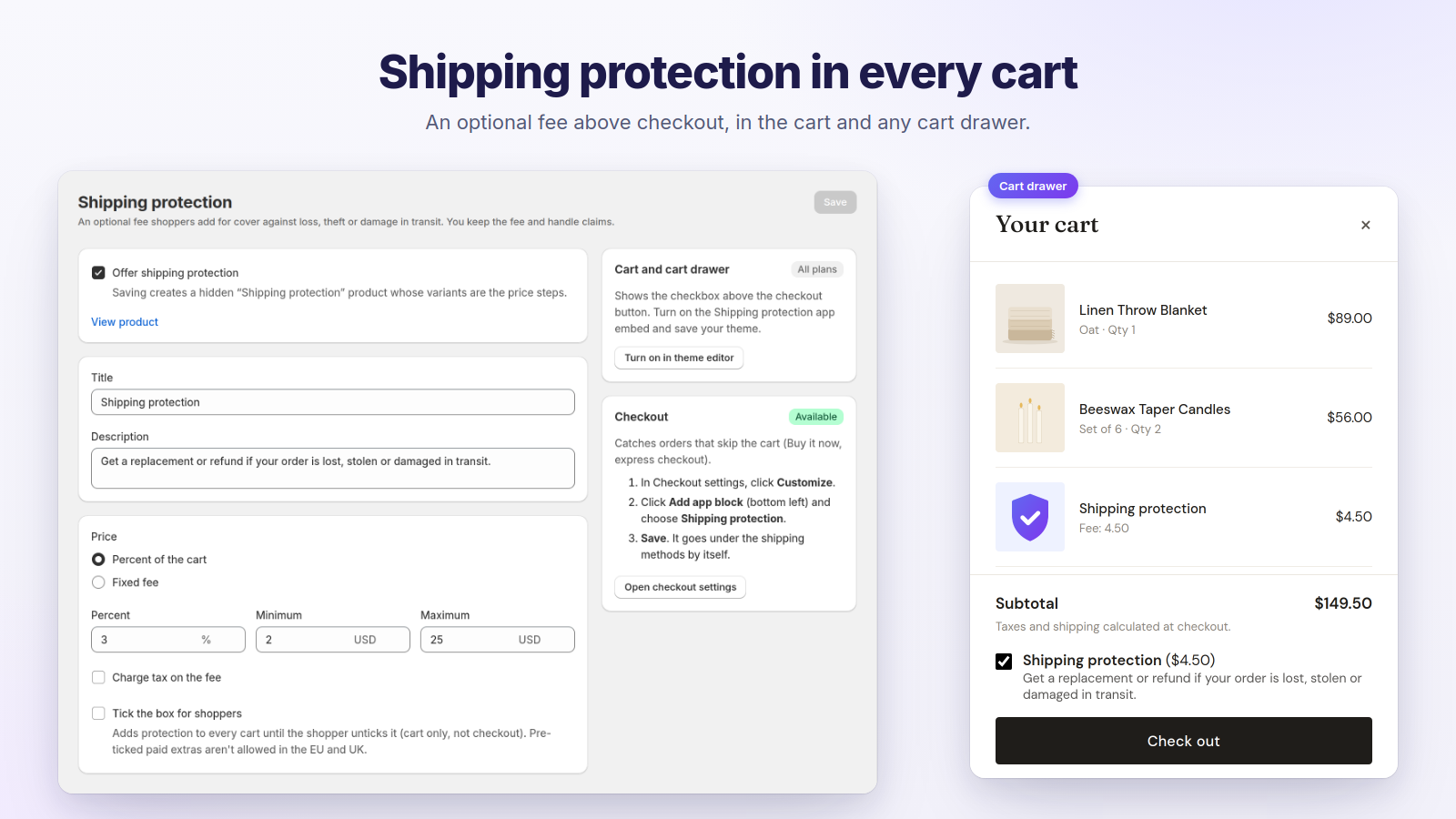
Tick the box for shoppers is off by default: pre-ticked paid extras aren't allowed in the EU and UK.
6. Post-purchase upsell
Bought a phone? Offer the case at 15% off, one tap from the thank-you page.
- Open Post-purchase upsell and add an offer: the product, its discount, its heading and button, and which orders it shows after.
- Click Add to thank-you page. In Settings → Checkout → Customize, the Thank you page opens: add the “Post-purchase upsell” app block and save.
- The thank-you page shows the first offer, in your list's order, that matches the order. It works on every Shopify plan.
7. Back in stock alerts
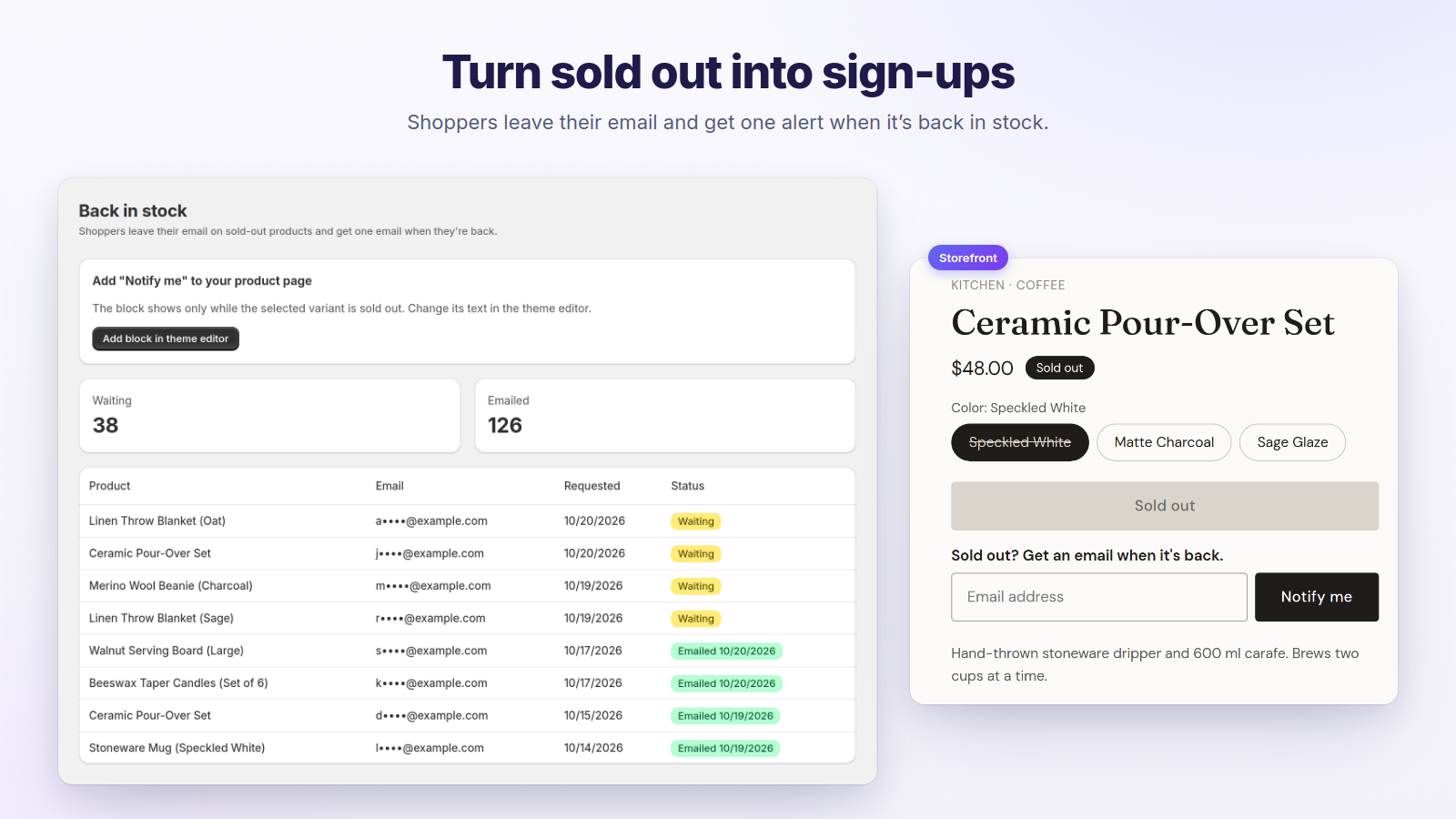
Shoppers leave their email on sold-out products and get one email when they're back.
- Open Back in stock and click Add block in theme editor. Your product page opens with the Notify me block added.
- Drag the block where you want it, change its text if you like, and save.
- The block only shows while the selected variant is sold out. When it's restocked, everyone waiting gets one email.
8. Product quiz
“Find your skincare routine”: skin type, concerns, budget, and the right products at the end.
- Open Product quiz and create a quiz: a title, an intro, and questions with 2 to 10 answers each.
- Pick the products each answer recommends, and the products to show when nothing matches. Products several answers name rank first.
- Publish it and add the Product quiz block. Your home page opens with it; on another page use Add section → Apps.
- Choose how it shows: the quiz on the page, or a button that opens it. Colours, font, sizes, corners and product cards are in the block's settings.
The block shows your first published quiz. For another one, paste its Quiz ID (on the quiz's page) into the block.
9. Pick a plan
Open Plans in the app menu. Billing goes through Shopify.
| Feature | Free | Scale · $49/month |
|---|---|---|
| Wholesale pricing | 1 active rule | Unlimited |
| Wholesale registration | — | Included |
| Order limits | 1 active rule | Unlimited |
| Shipping protection | Fixed fee | Fixed or percent of the cart |
| Post-purchase upsell | 1 active offer | Unlimited |
| Back in stock emails | 50 a month | Unlimited |
| Product quizzes | 1 published | Unlimited |
Every store's first 6 days include everything in Scale. Scale's charge has a 6-day free trial too, less any trial days you've already used.
Stuck on a step? Email support@affiliomint.com.